Adding Attributes to a Model Display
To add attributed to a model:
In the Modeler, open the AF Property window.
Select the Attributes tab.
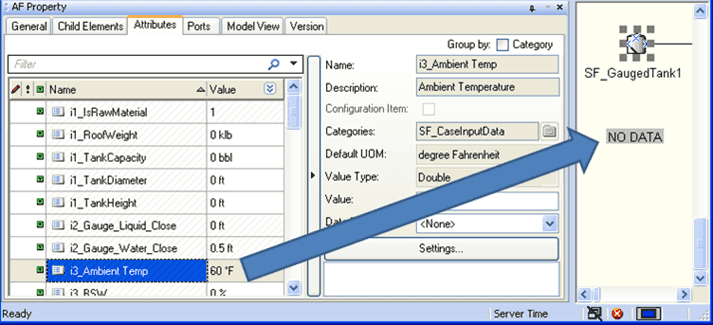
The Attribute might not show the value in build mode (if the Data Sets option ‘Do not retrieve Data in Build mode’ is checked).
To view the Attribute in the display, click the Run Mode button.
Place the Attribute near its Element to associate the two (as shown in Figure 178).

When you move the parent element, the Attribute moves with it. Note that you can drag the Attribute away from the parent Element without moving the parent.
Note: If you place a ProcessBook trend in a display, you can drag and drop an Attribute onto the trend. The trend then displays the changing value of the attribute.